Leave Website And Design Feedback Using Markup Tools
Leave Website And Design Feedback Using Markup Tools
This tutorial guides you through the process of leaving website and design feedback using markup tools. You will learn how to provide clear, actionable comments to improve your project effectively.
1. Log In to Your Account
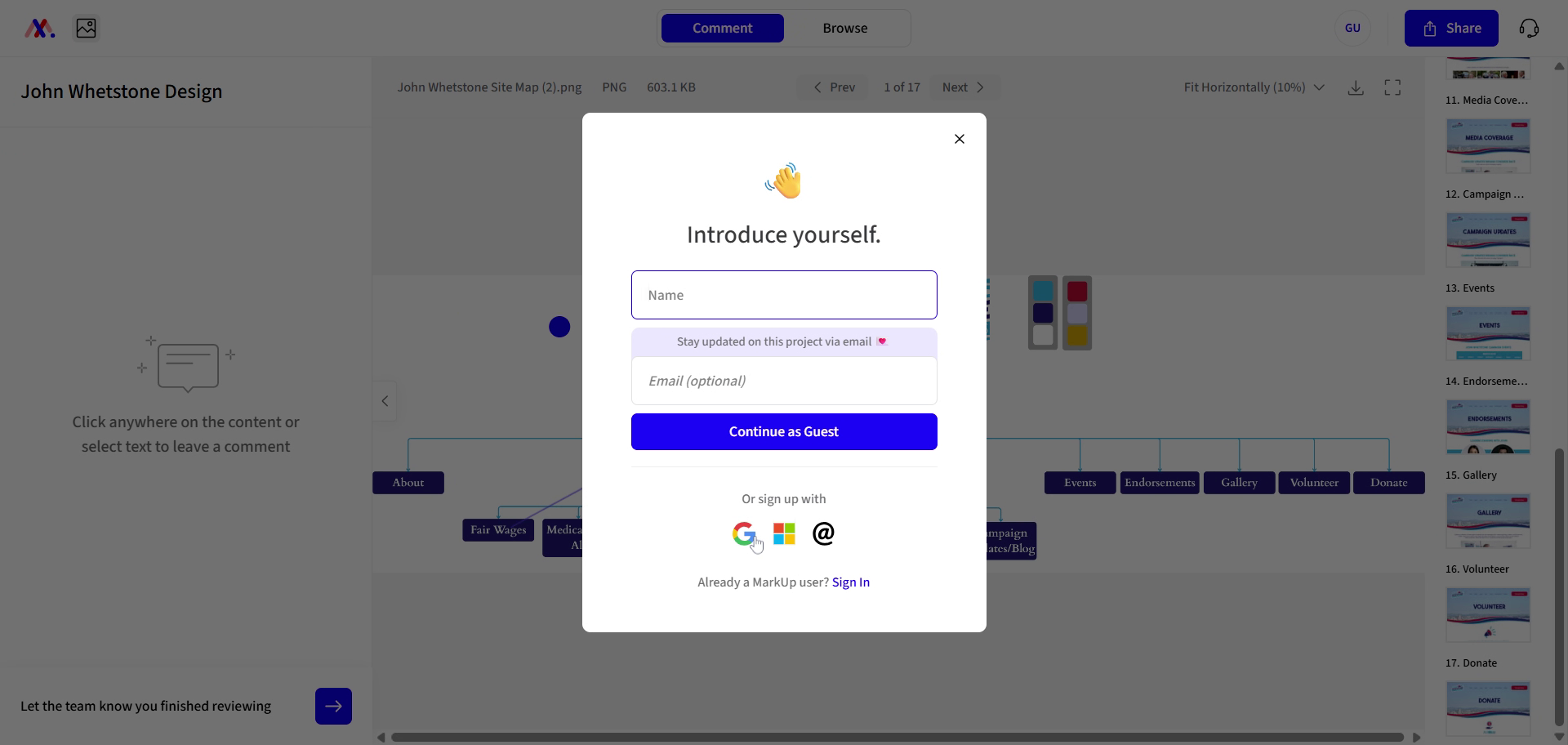
I'll go ahead and log in.
2. Select Your Login Method
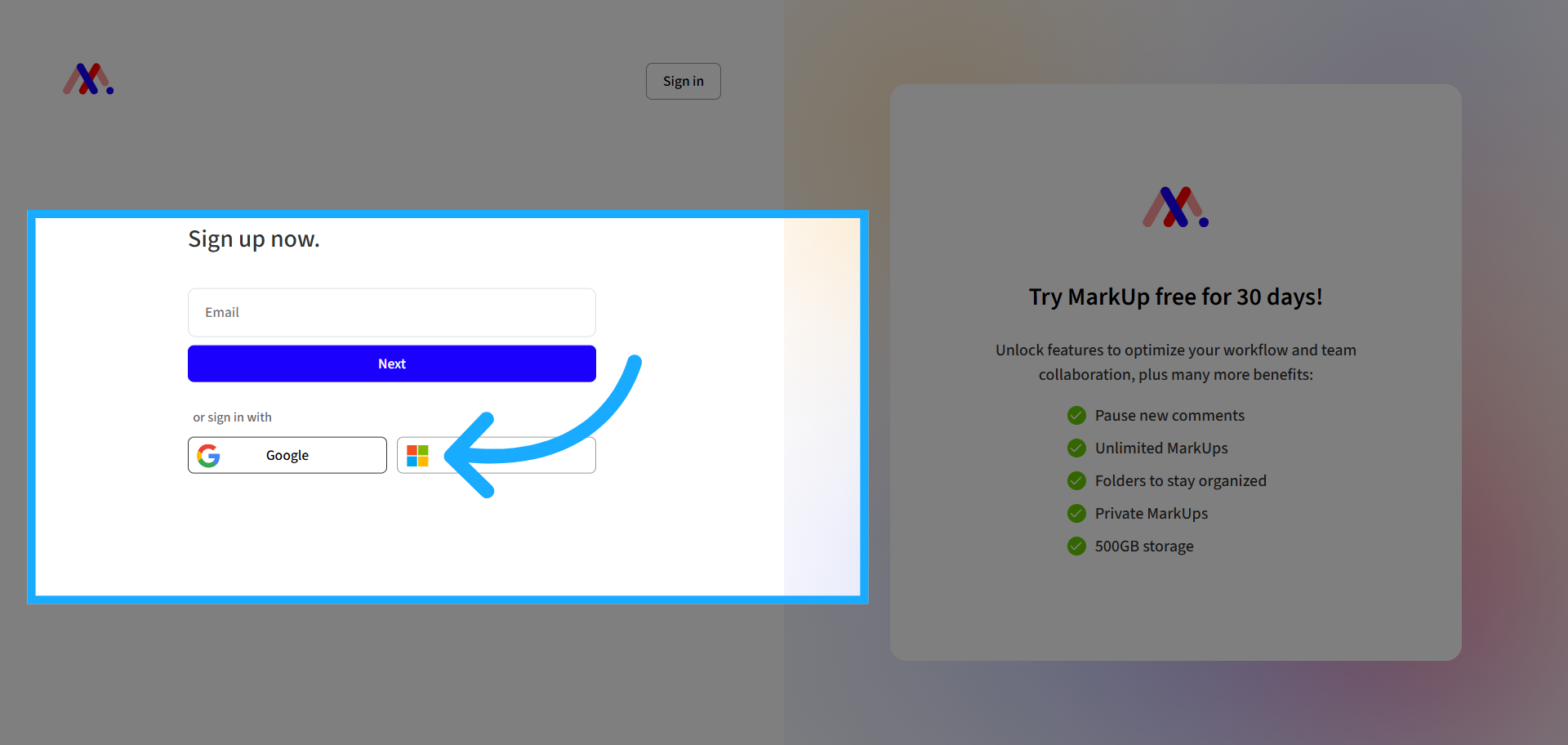
Select your login method.
3. Click Login Button
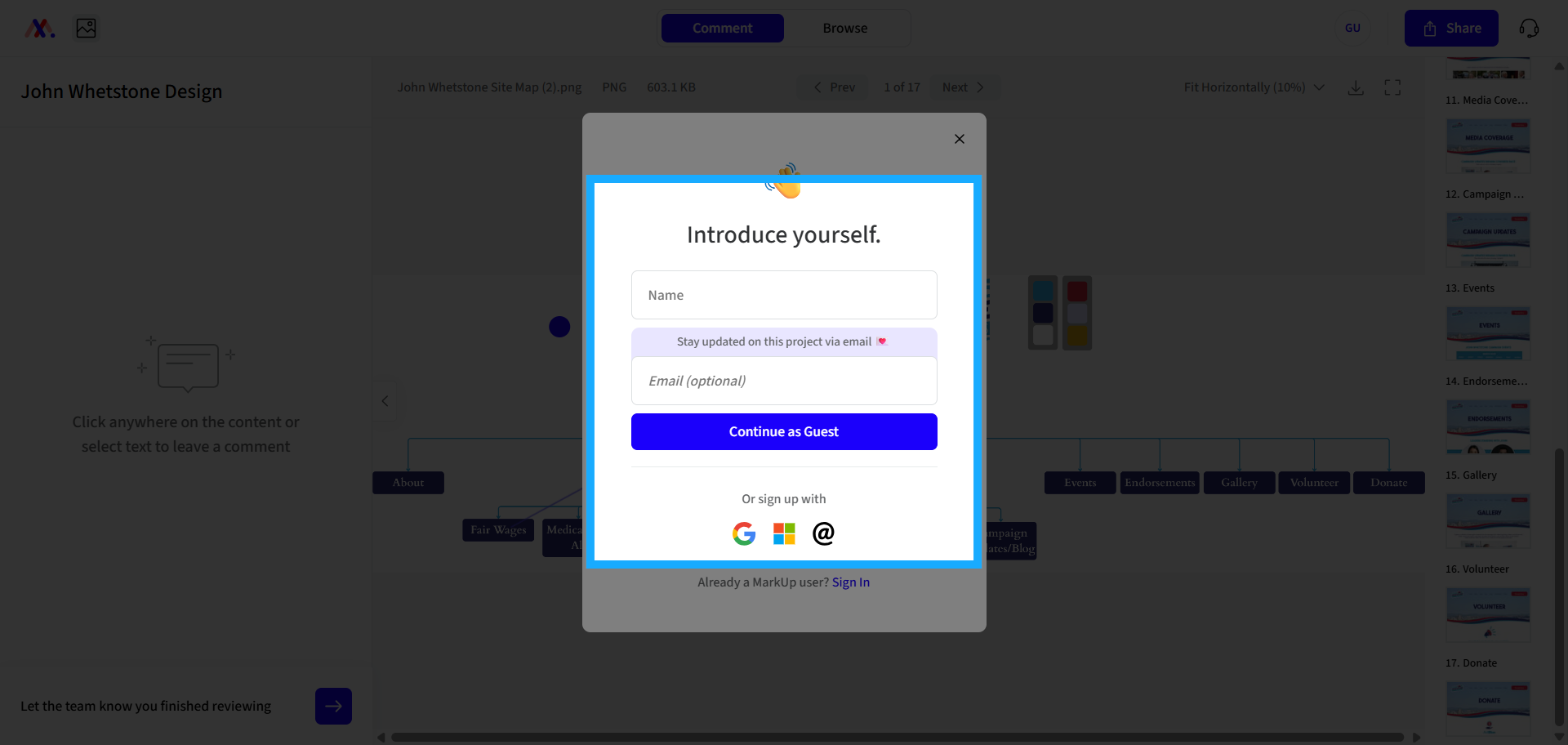
Click the login button to proceed.
4. Understand Design Feedback Purpose
All right, so you are watching this video because you have some type of design that you are leaving feedback for.
5. Learn Key Process Elements
I'd like to show you a few things that are important for this process.
6. Review Website Project Example
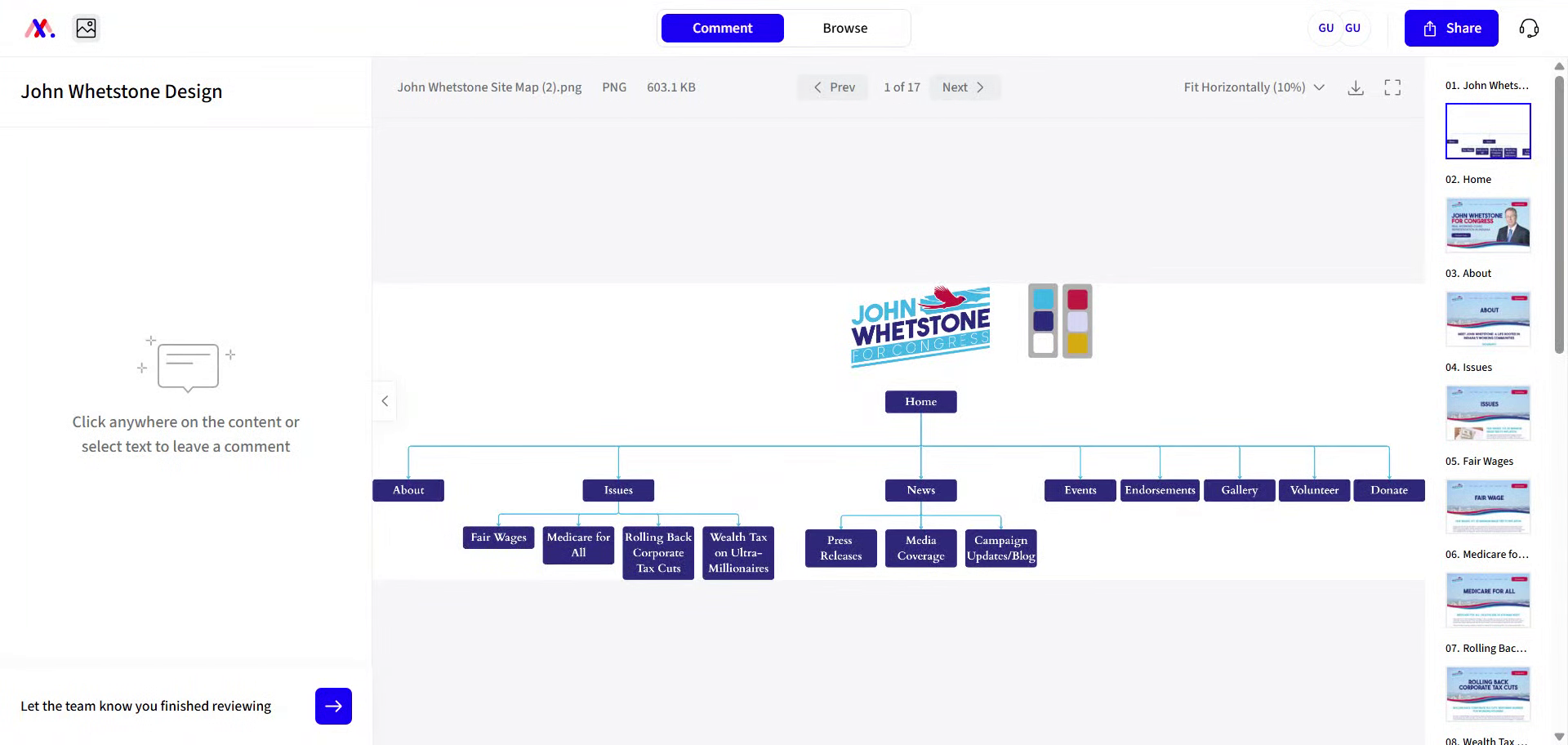
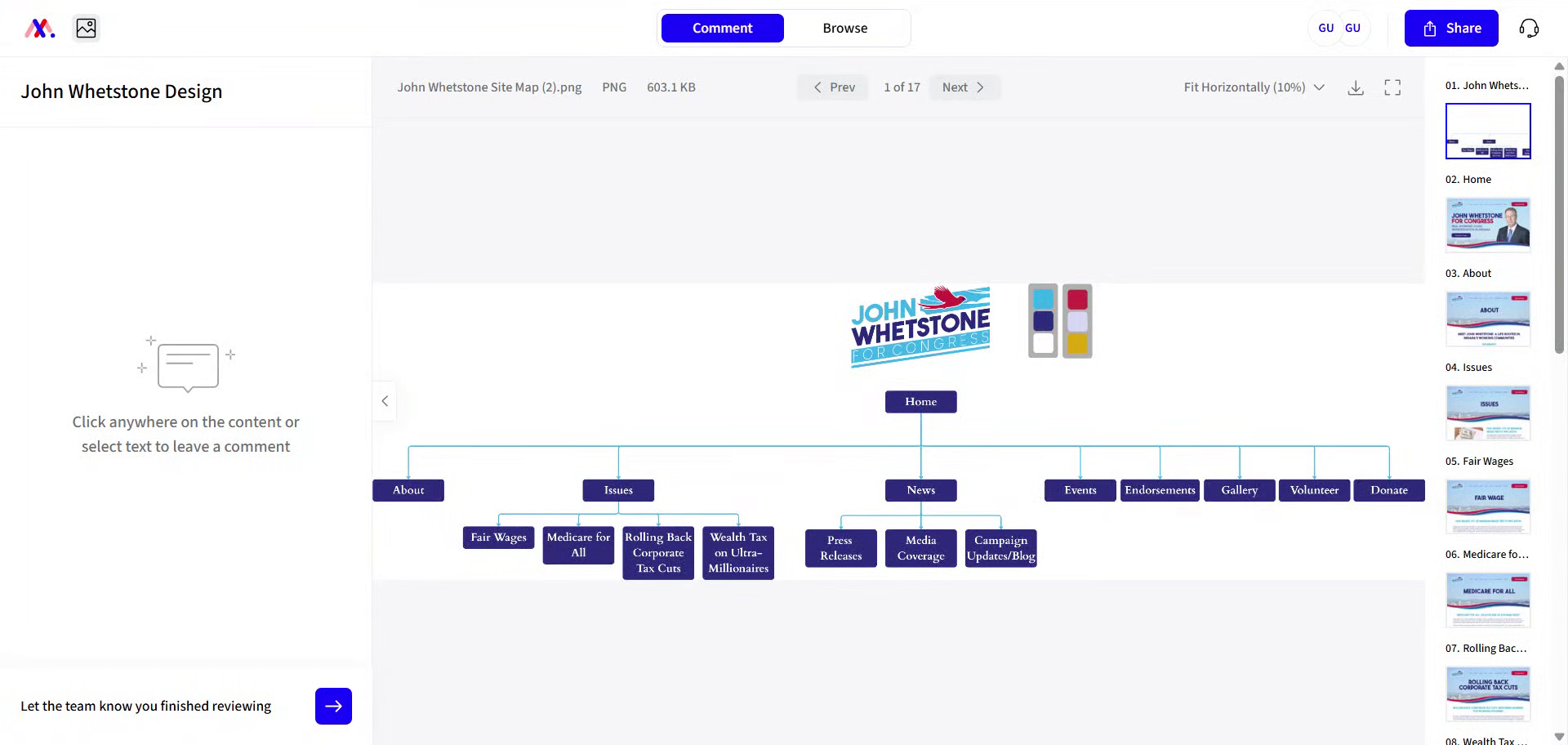
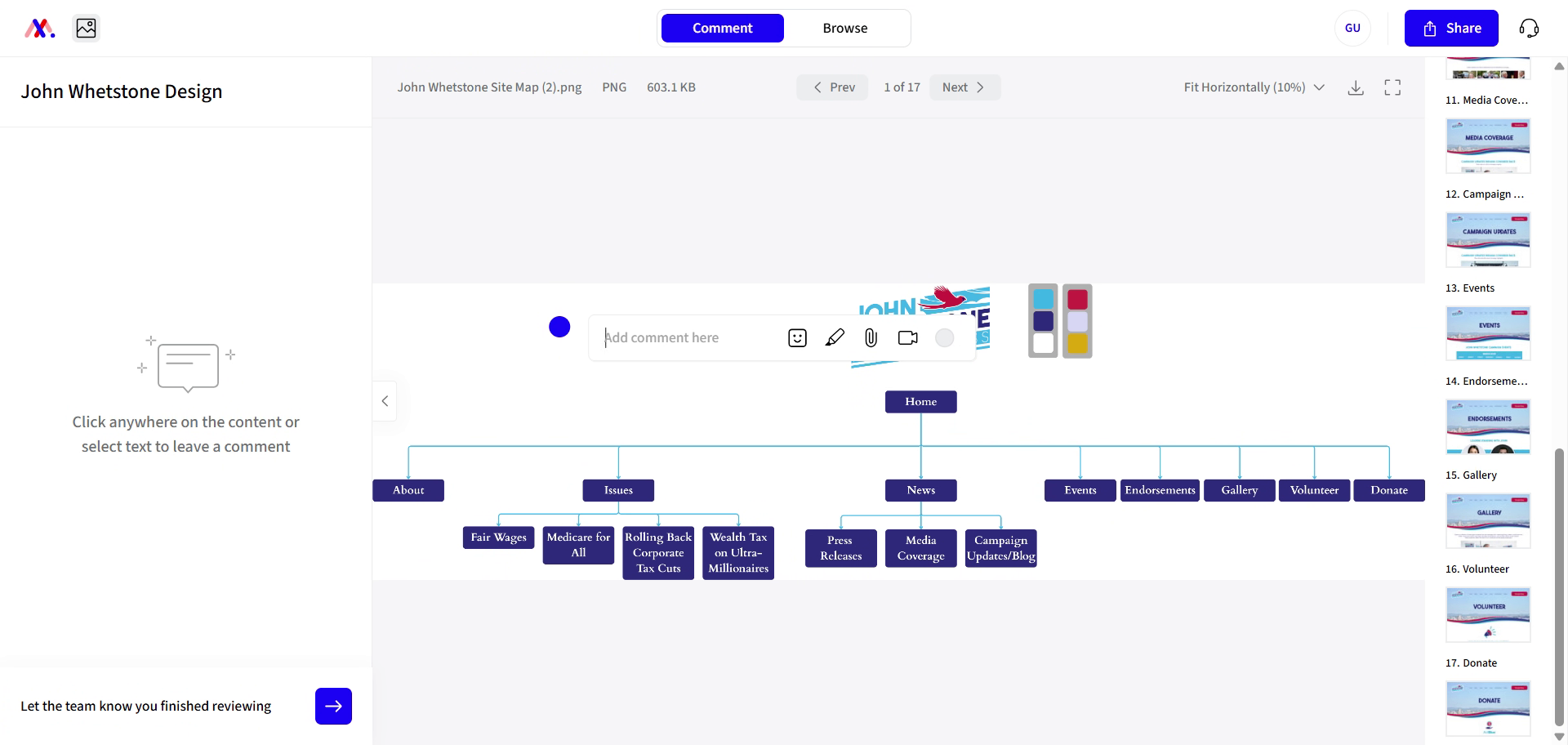
On this example, this is a website project and the first page you're seeing is a site map. This shows how the pages of your website connect to one another.
7. Explore Site Map Navigation
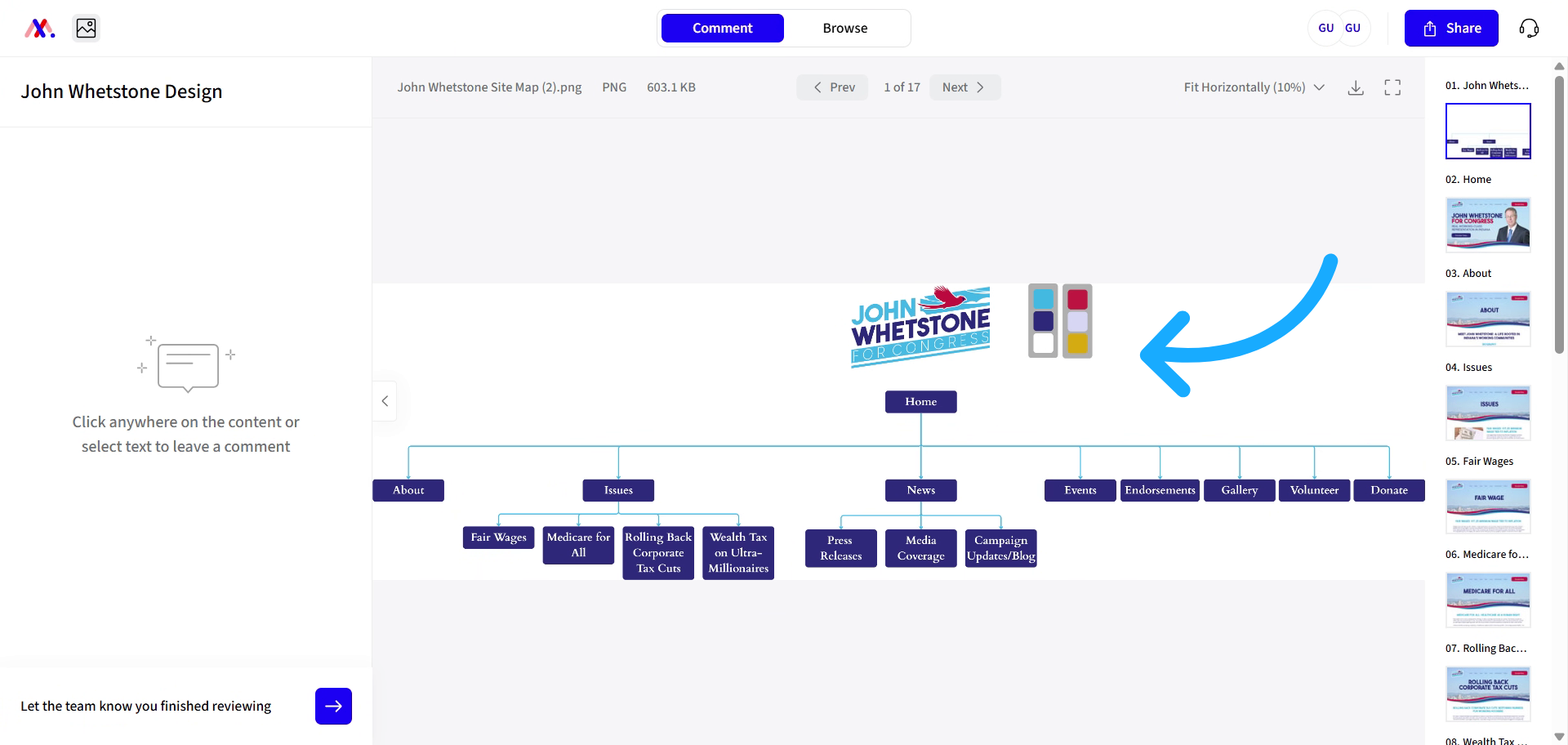
You can see the homepage, all the menu items, and submenu items. I'd like to show you the navigation around this page now.
8. Locate Comments Section
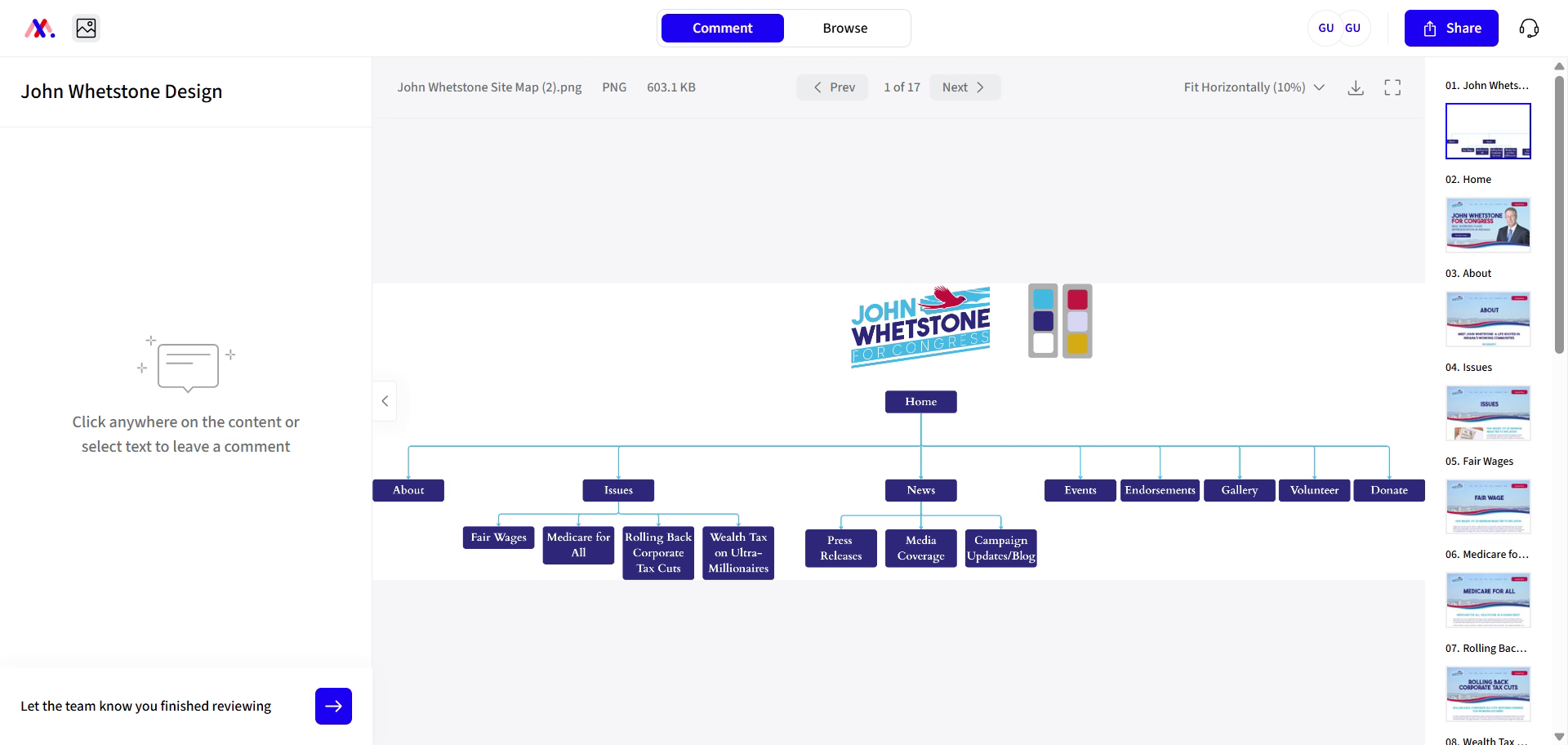
Here, on the left side is where you will be able to see all the comments that are left on the page.
9. Switch Between Comment and Browse
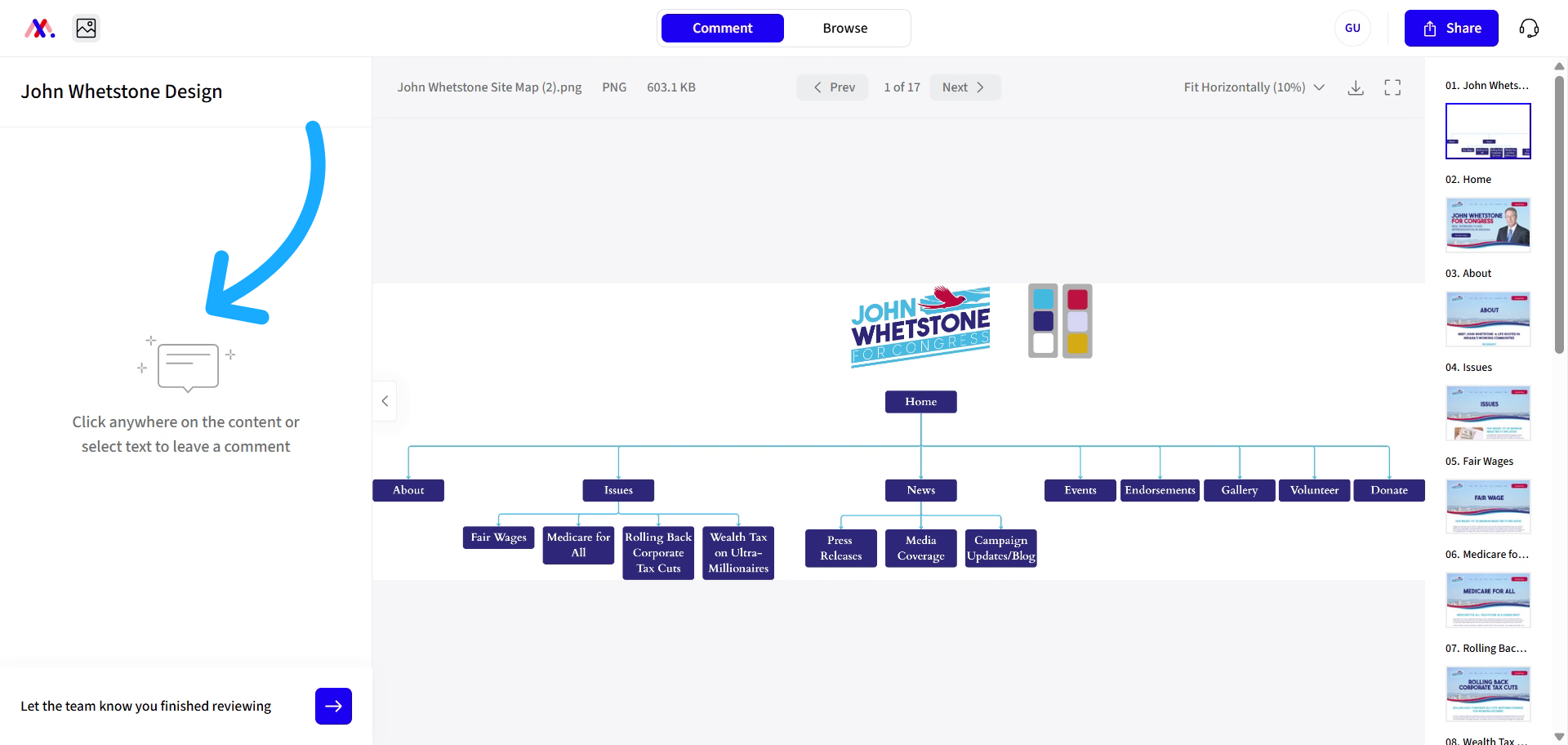
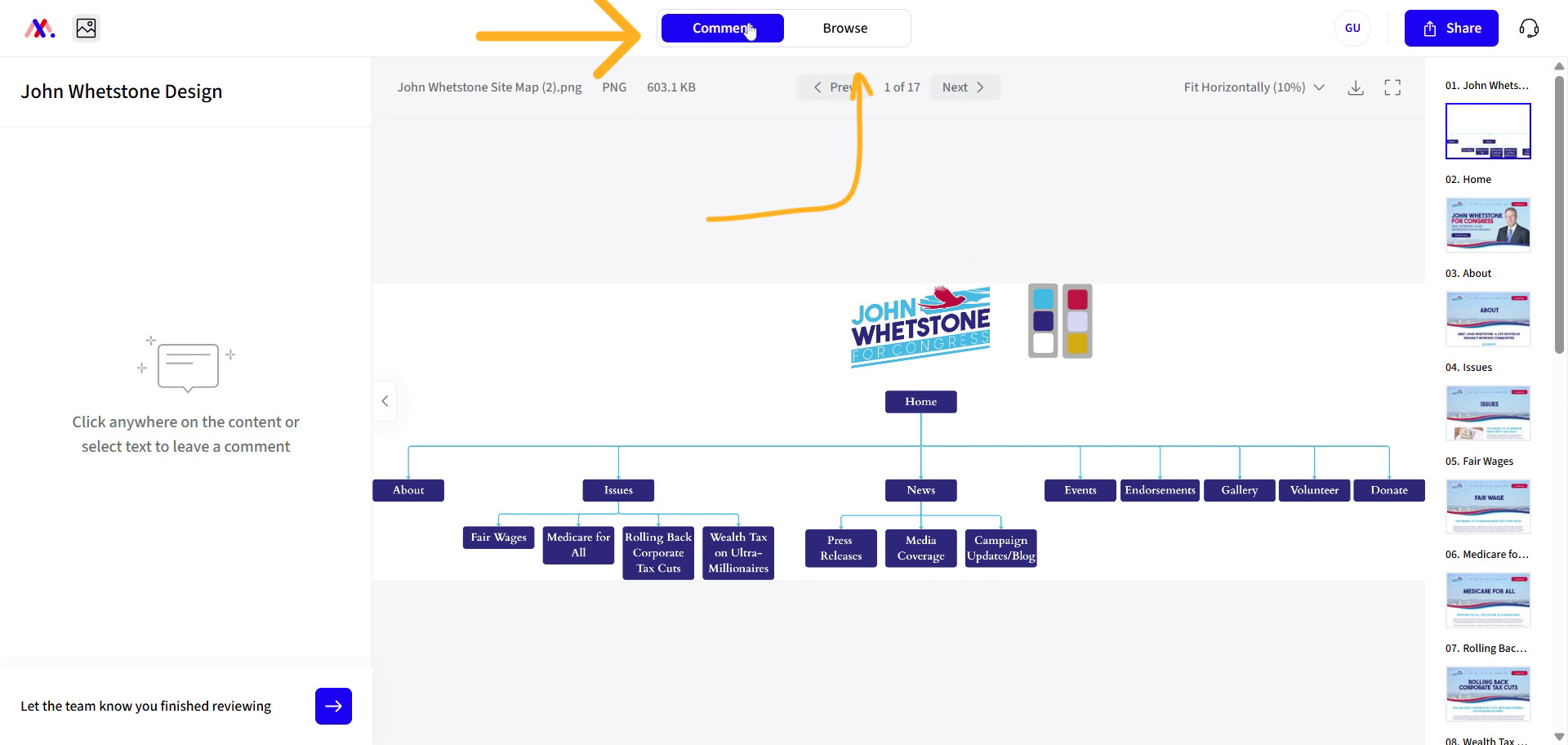
As you can see, we are currently in the comment section. You can switch to the browse section.
10. Navigate Without Commenting
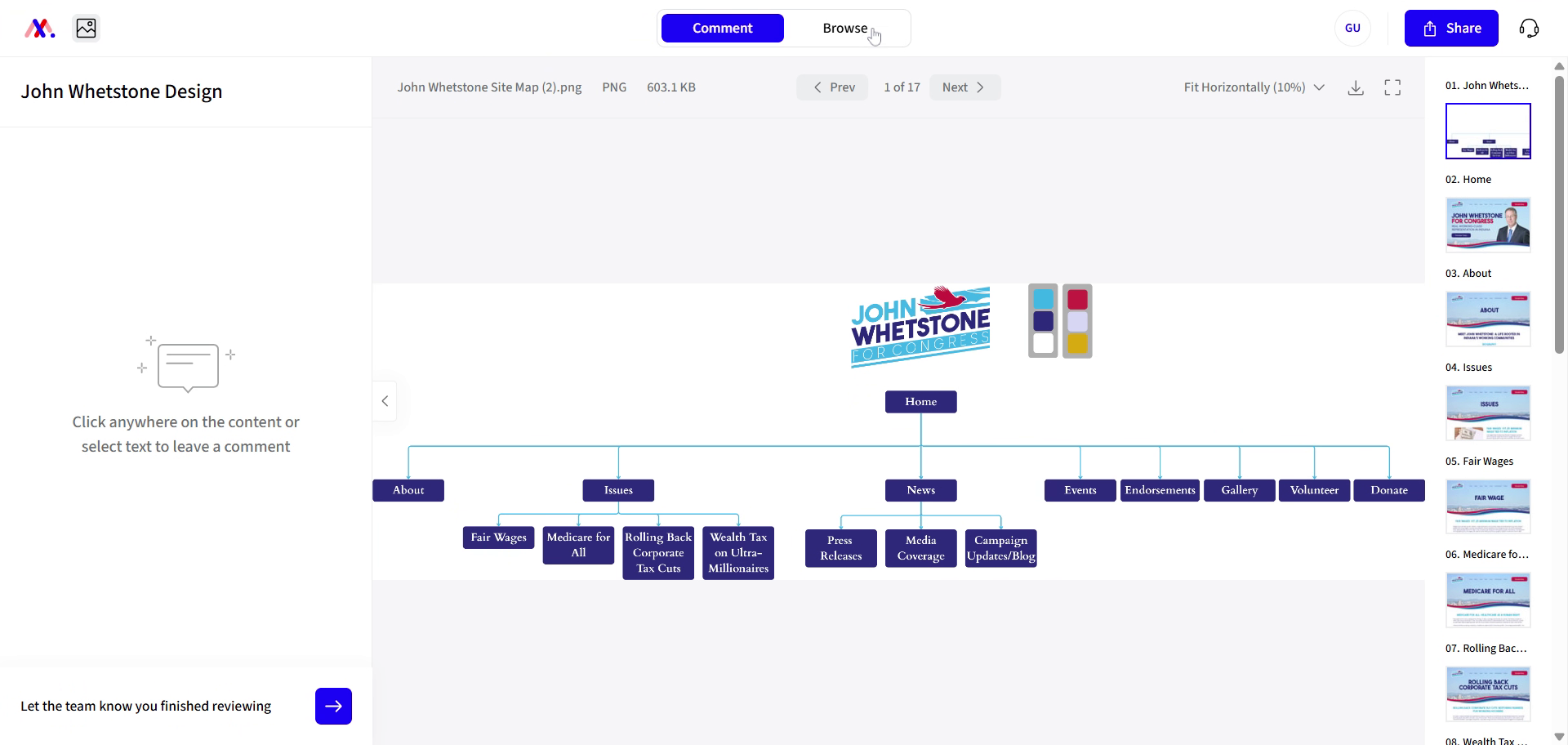
To navigate around without leaving comments, use the browse section.
11. Browse Design Pages
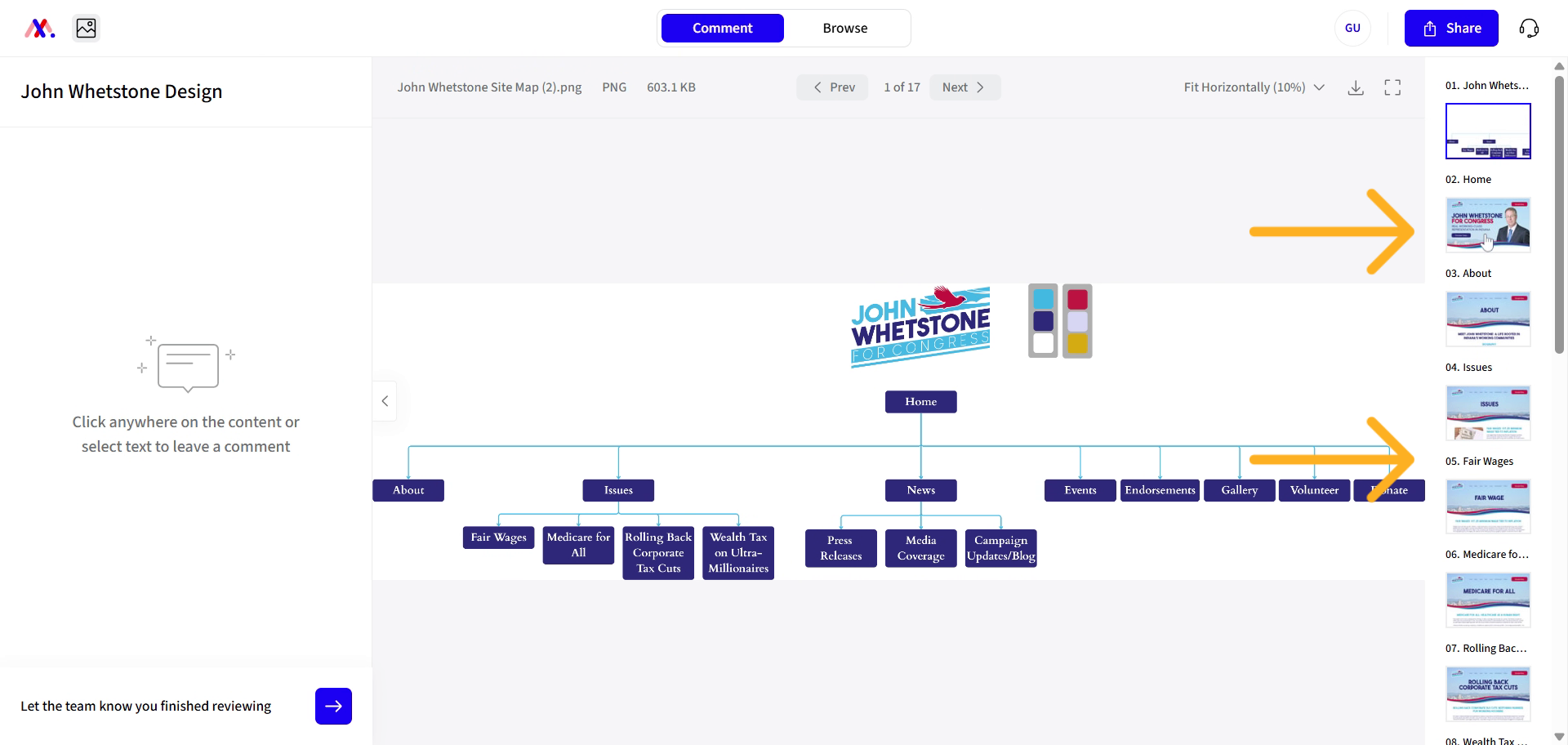
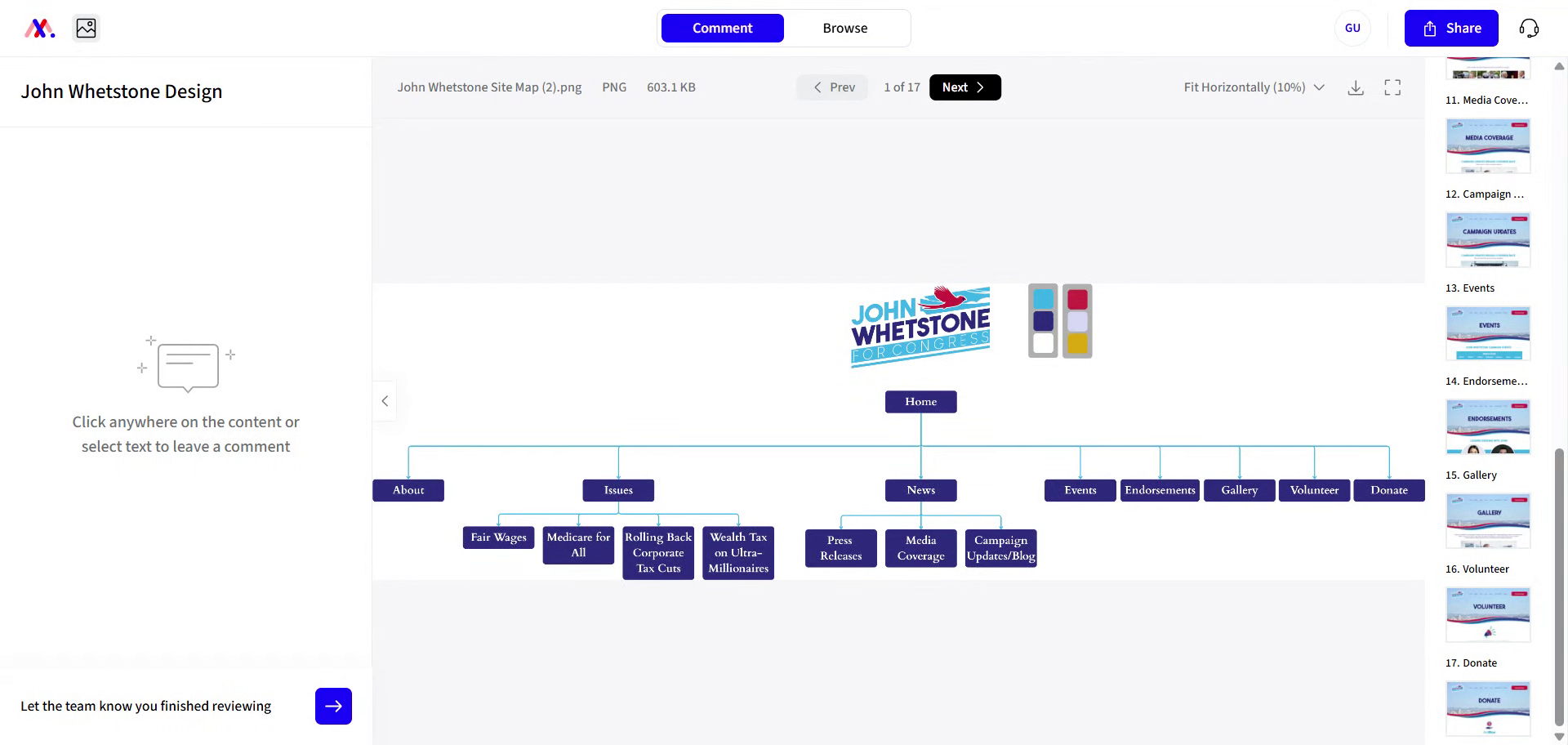
On the right side, you can see all of the pages of design and you can click through them as needed or you can navigate using the next icon at the top.
12. Initiate Commenting on Page
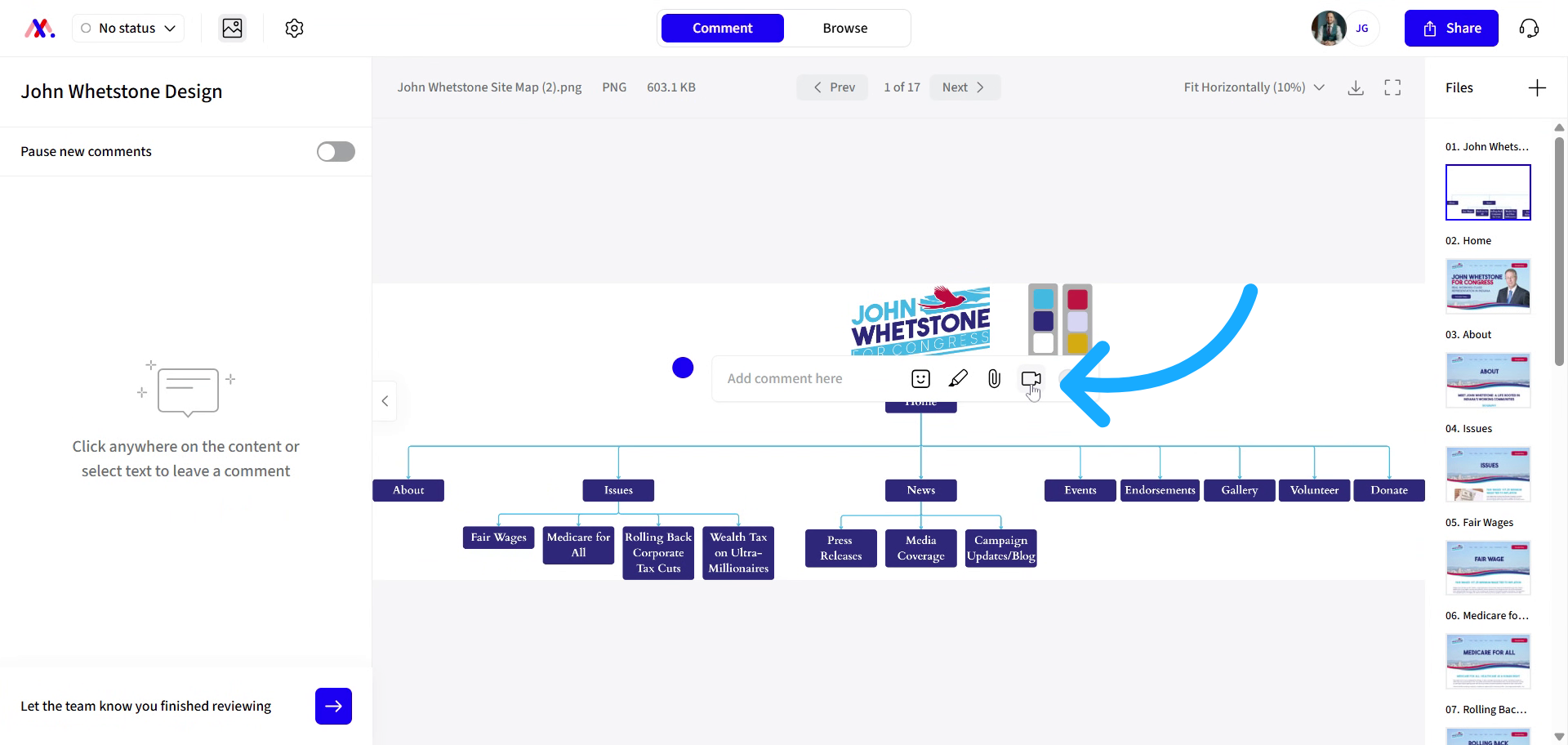
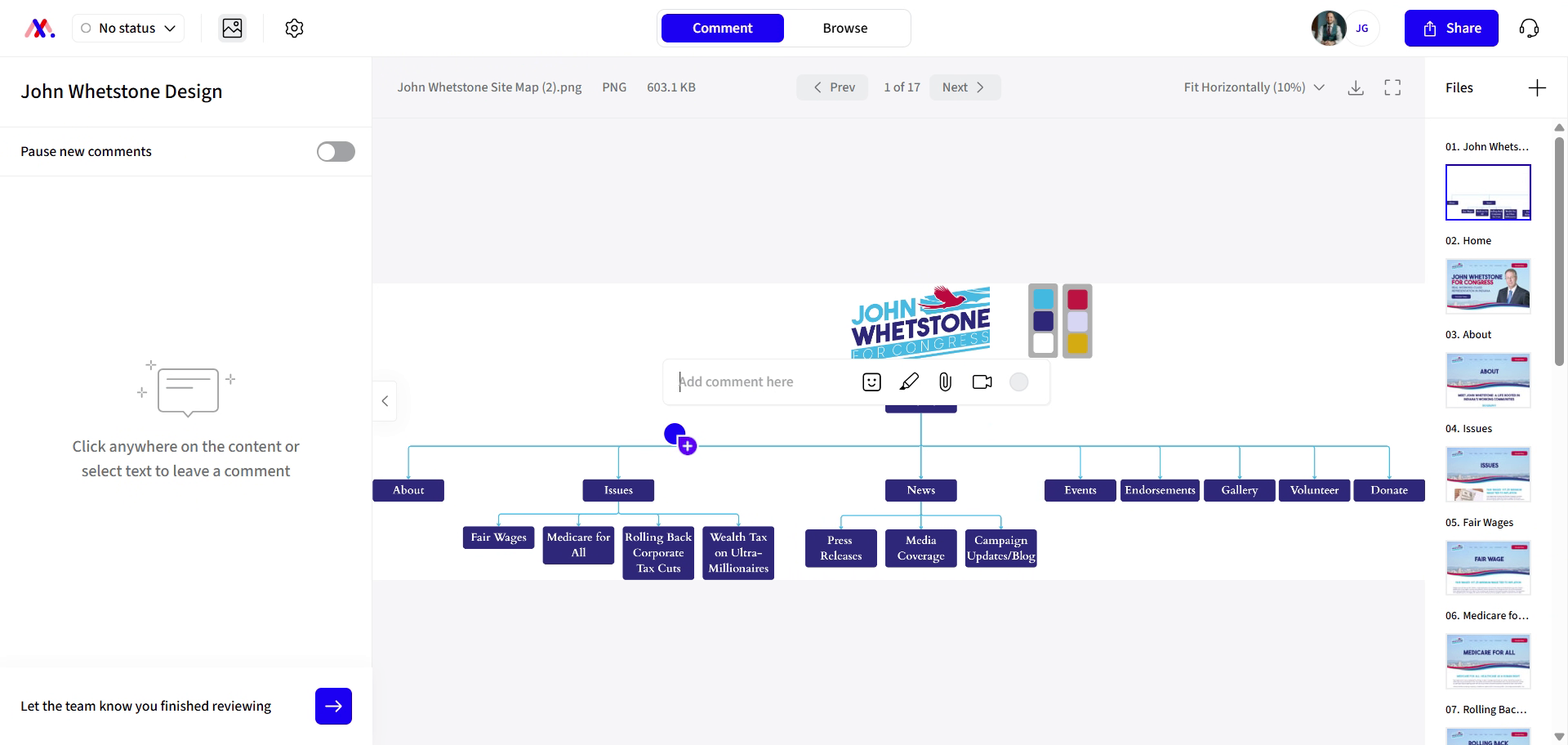
So to leave a comment, it's pretty simple. You can click anywhere on the page and a comment box will appear. You can comment via text.
13. Enter Your Comment Text
Enter your comment in the provided text box.
14. Add Drawings to Comments
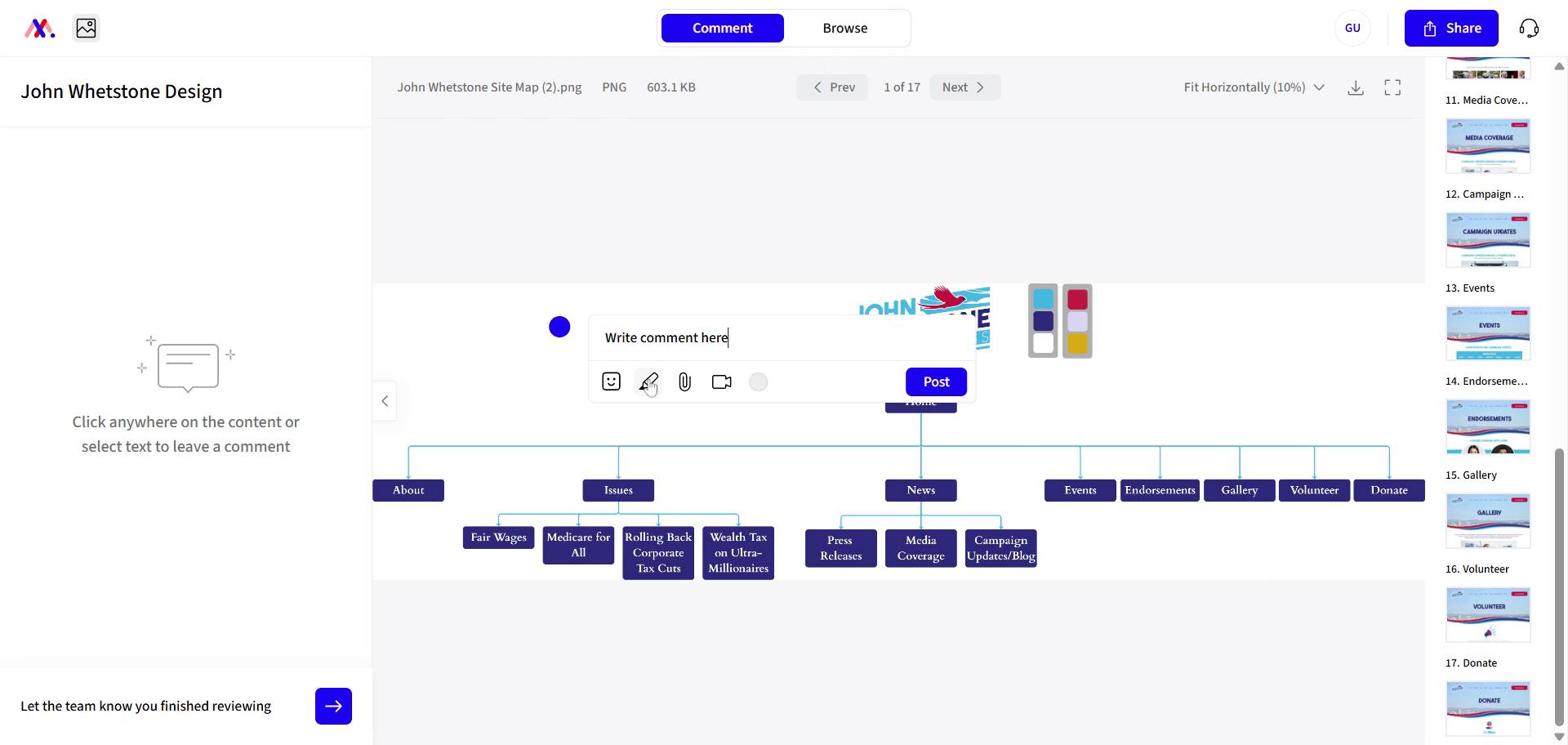
You can include drawings.
15. Select Drawing Tool
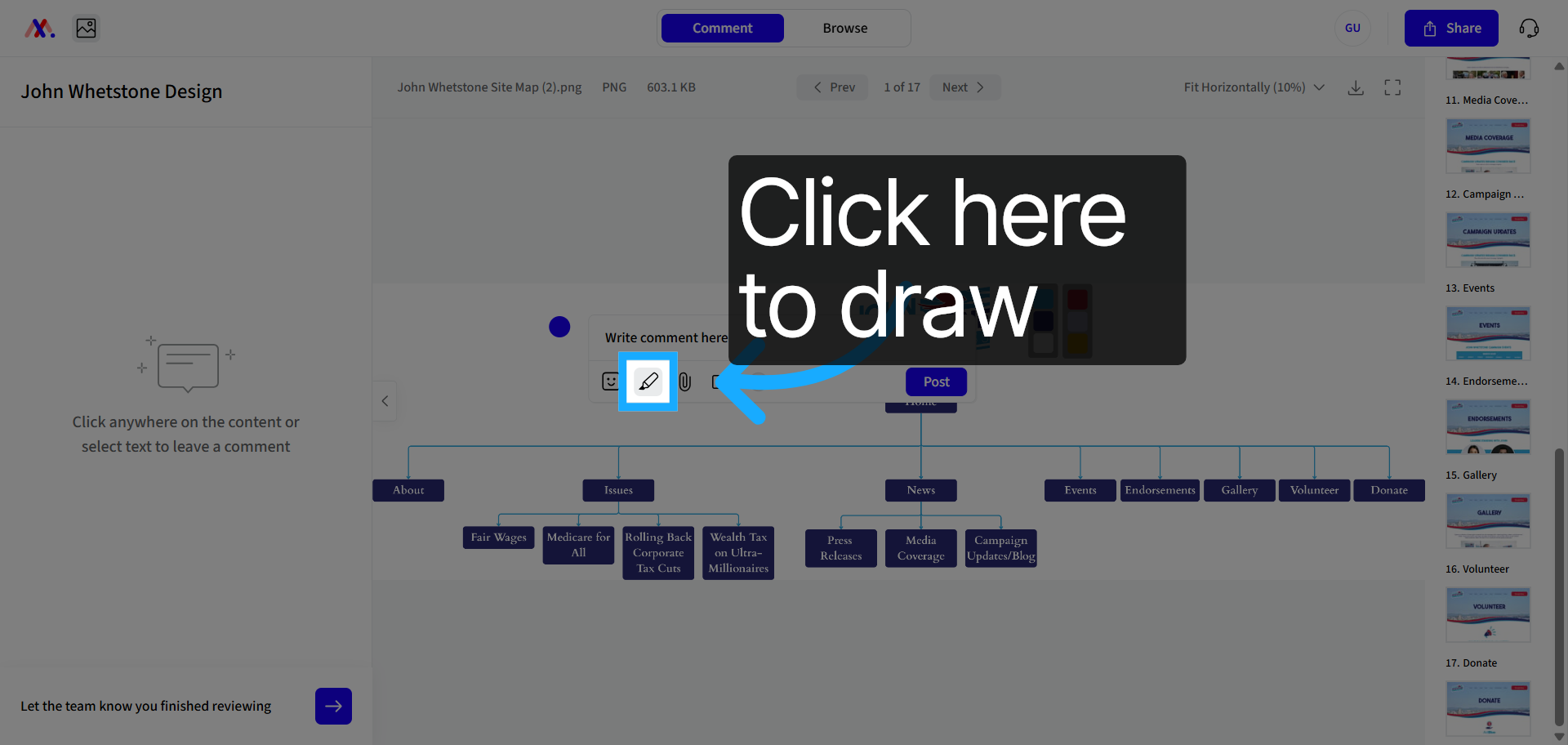
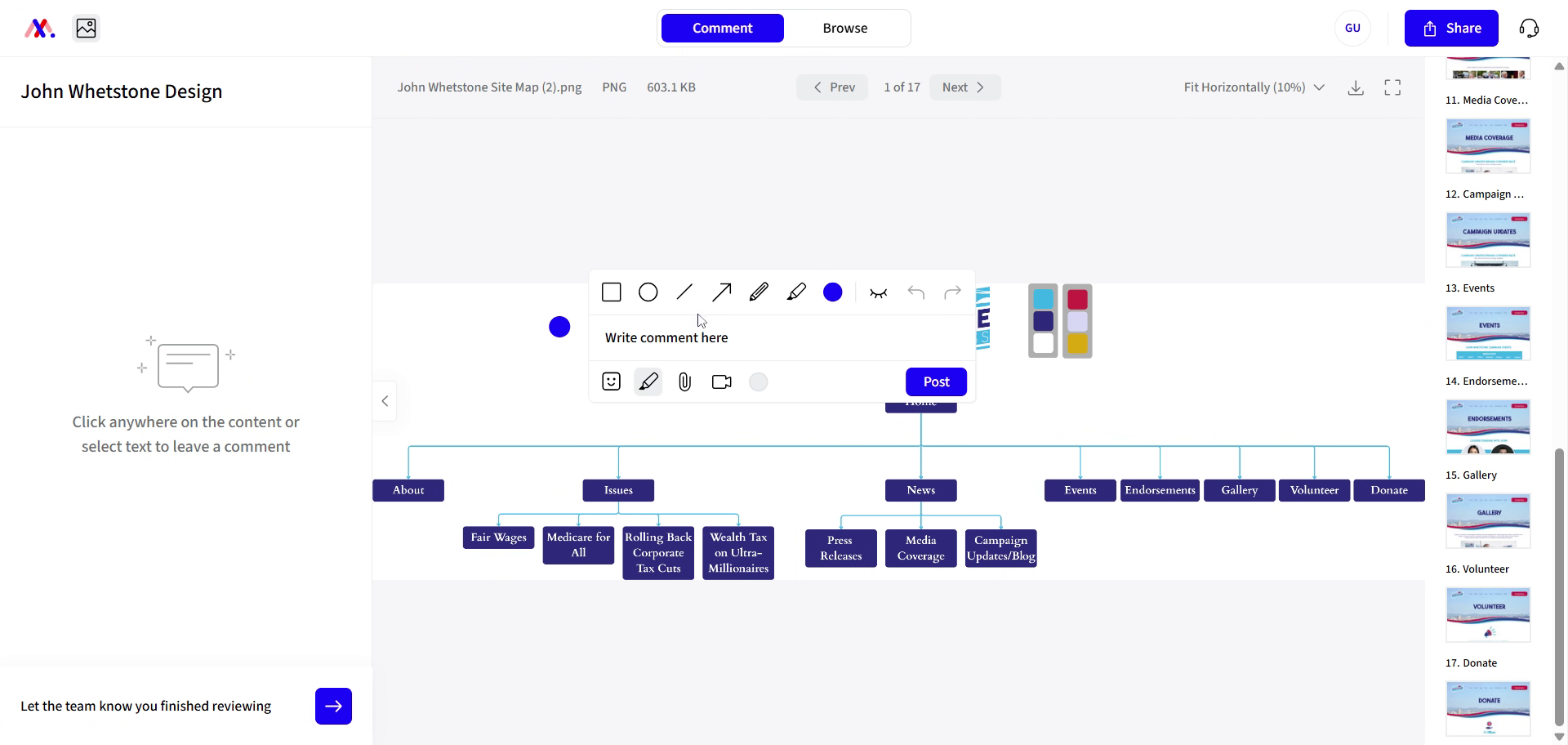
Click the drawing tool to add visual notes.
16. Use Marker Icon for Drawings
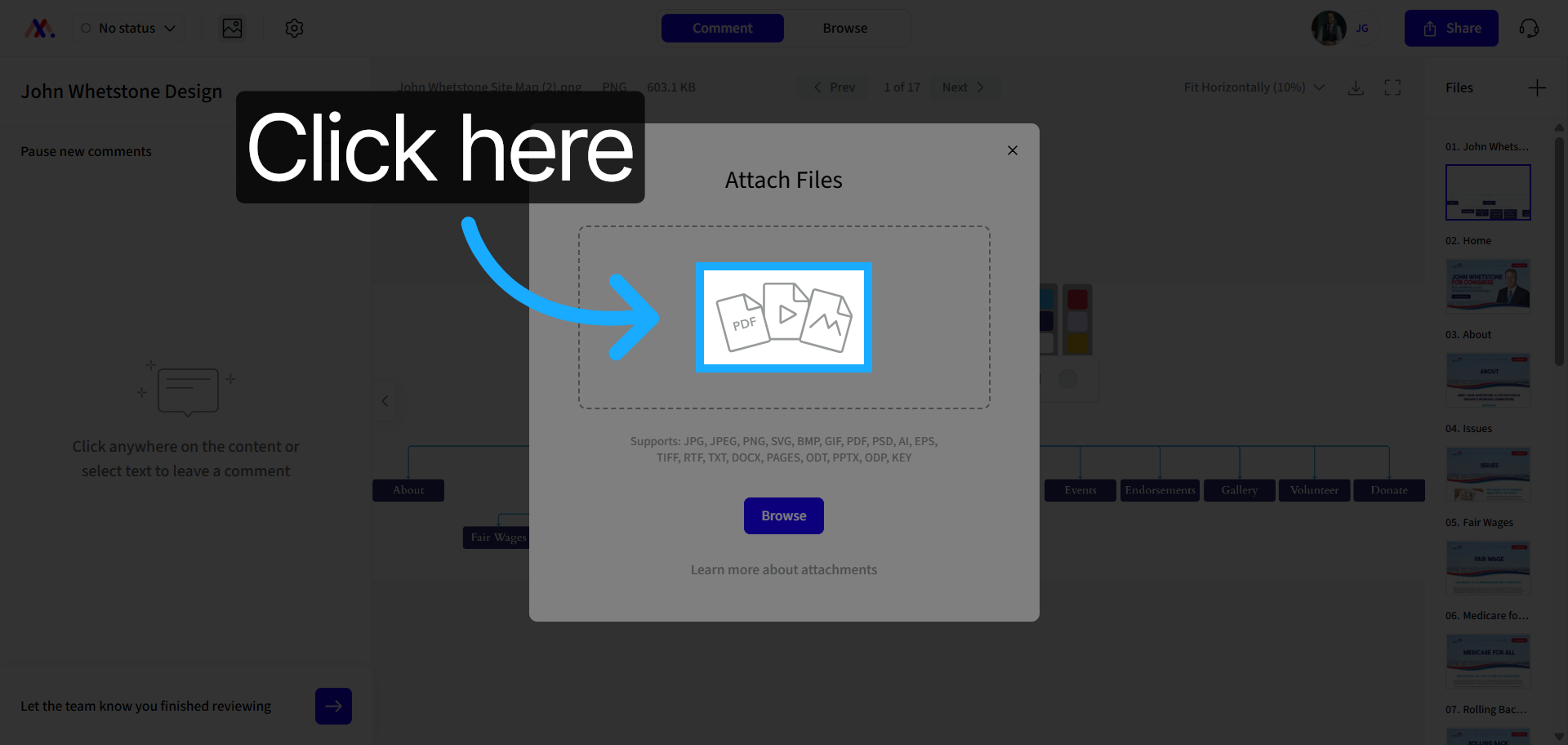
By clicking on the marker icon, you can include drawings. You can add attachments such as videos.
17. Click Attachment Button
Click the attachment button to add files.
18. Use Video Recording Feature
My favorite feature is that you can click the video button to let you record a video talking through and showing exactly where you want changes to be.
19. View Changes Made
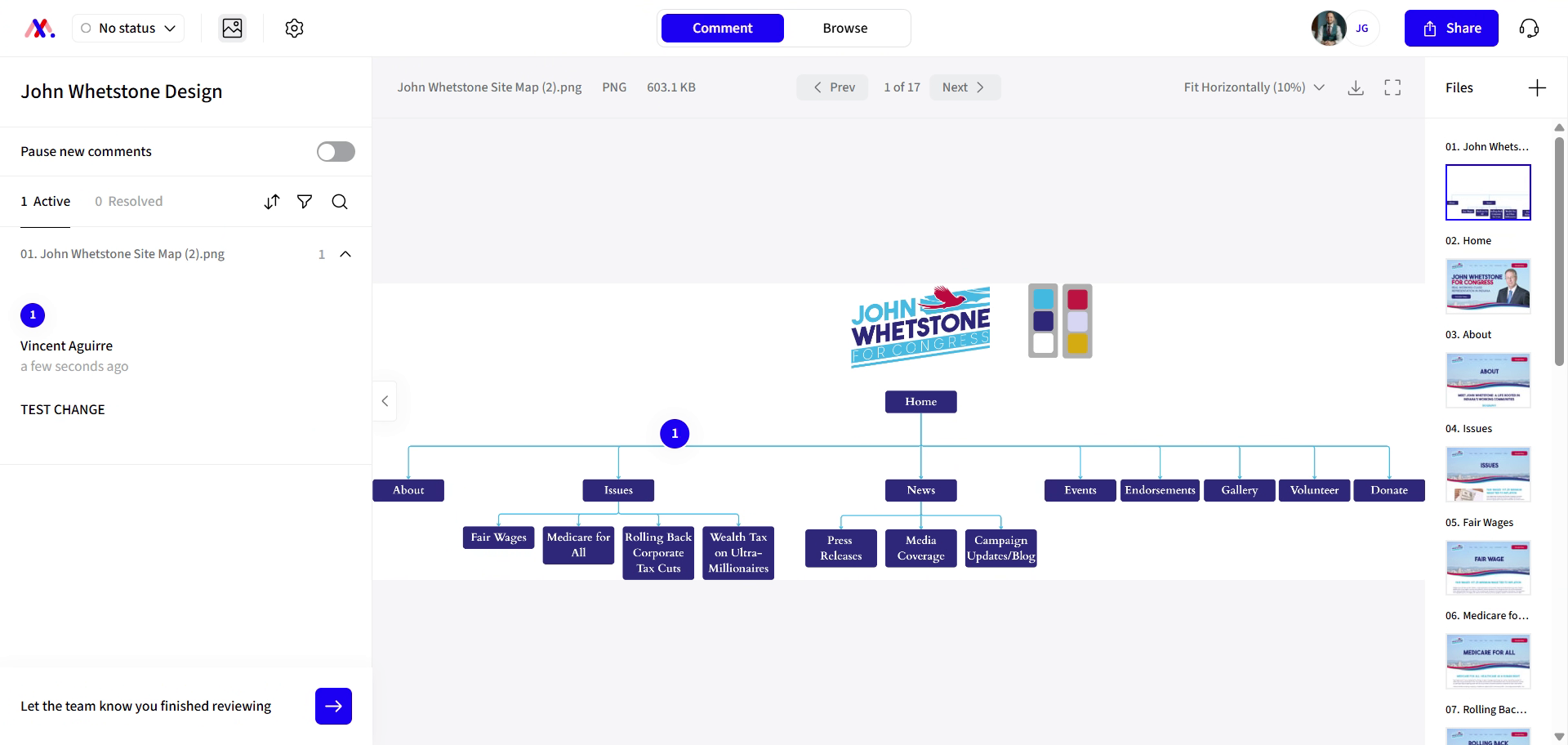
When comments are added
20. Review Comments and Additions
You'll see them on the left side where you can click on them to leave comments or add additional videos attachments.
21. Mark Items as Resolved
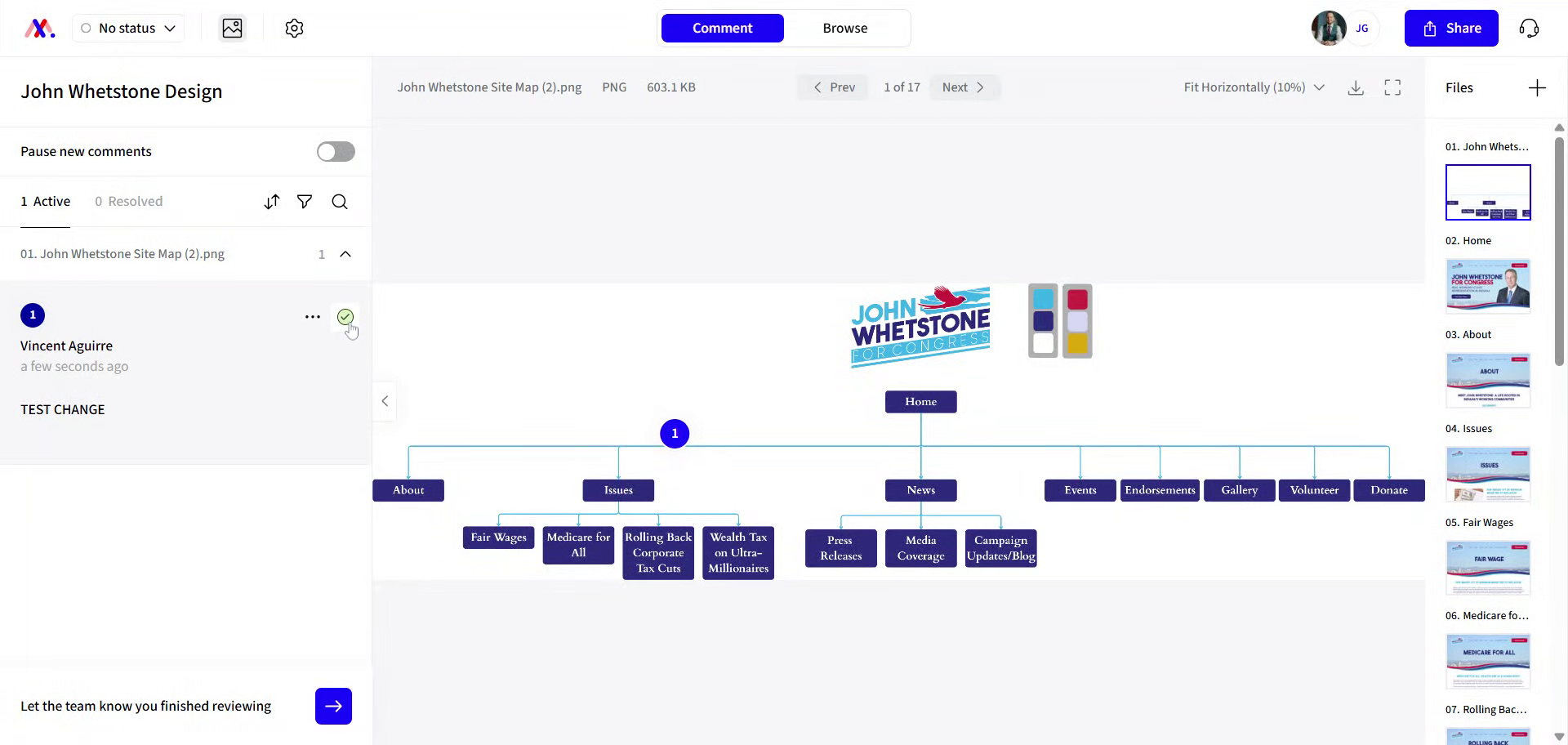
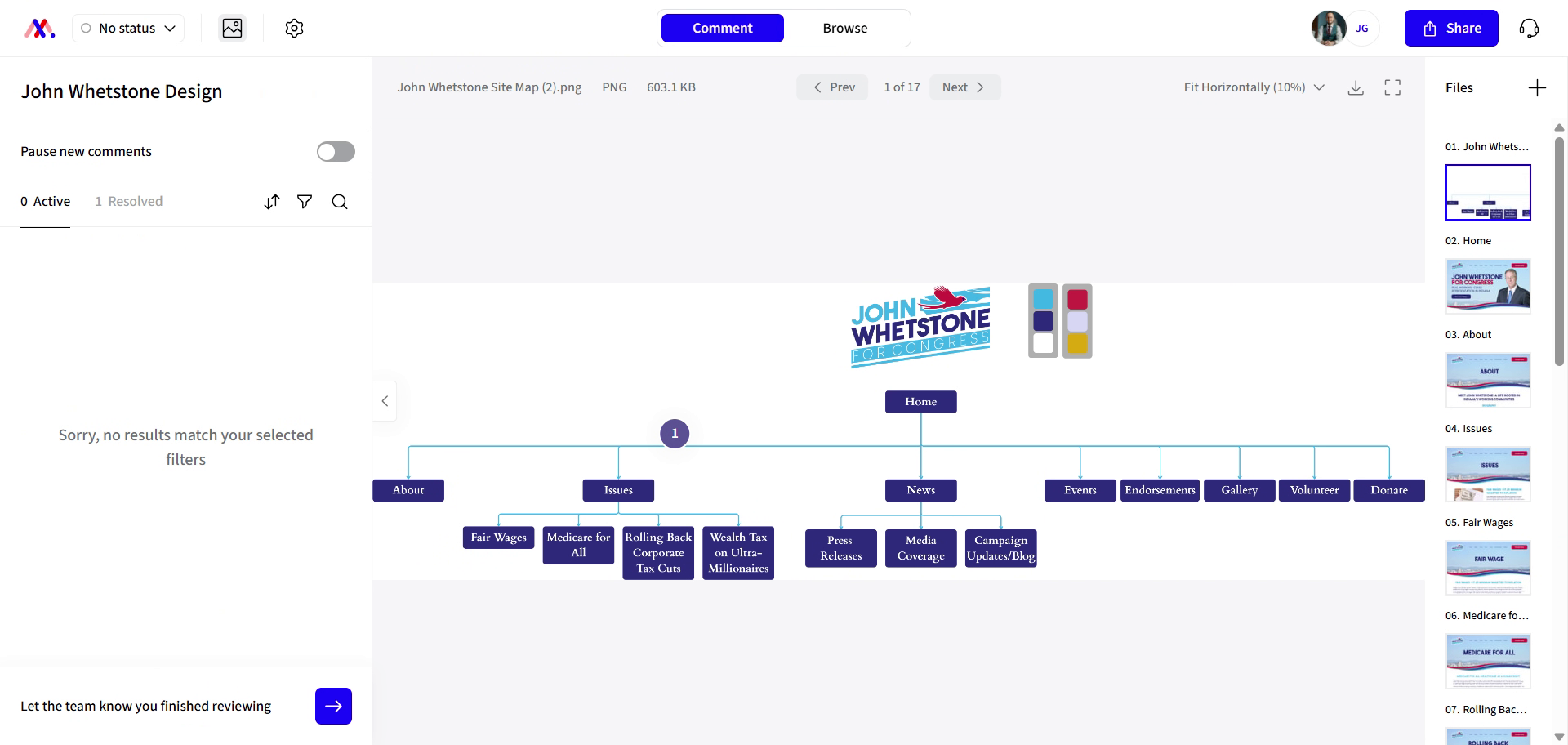
And when something is completed, you can hit the green check mark to mark it as resolved.
22. Click Resolve Button
Click the resolve button to mark feedback as addressed.
23. Notify Team of Review Completion
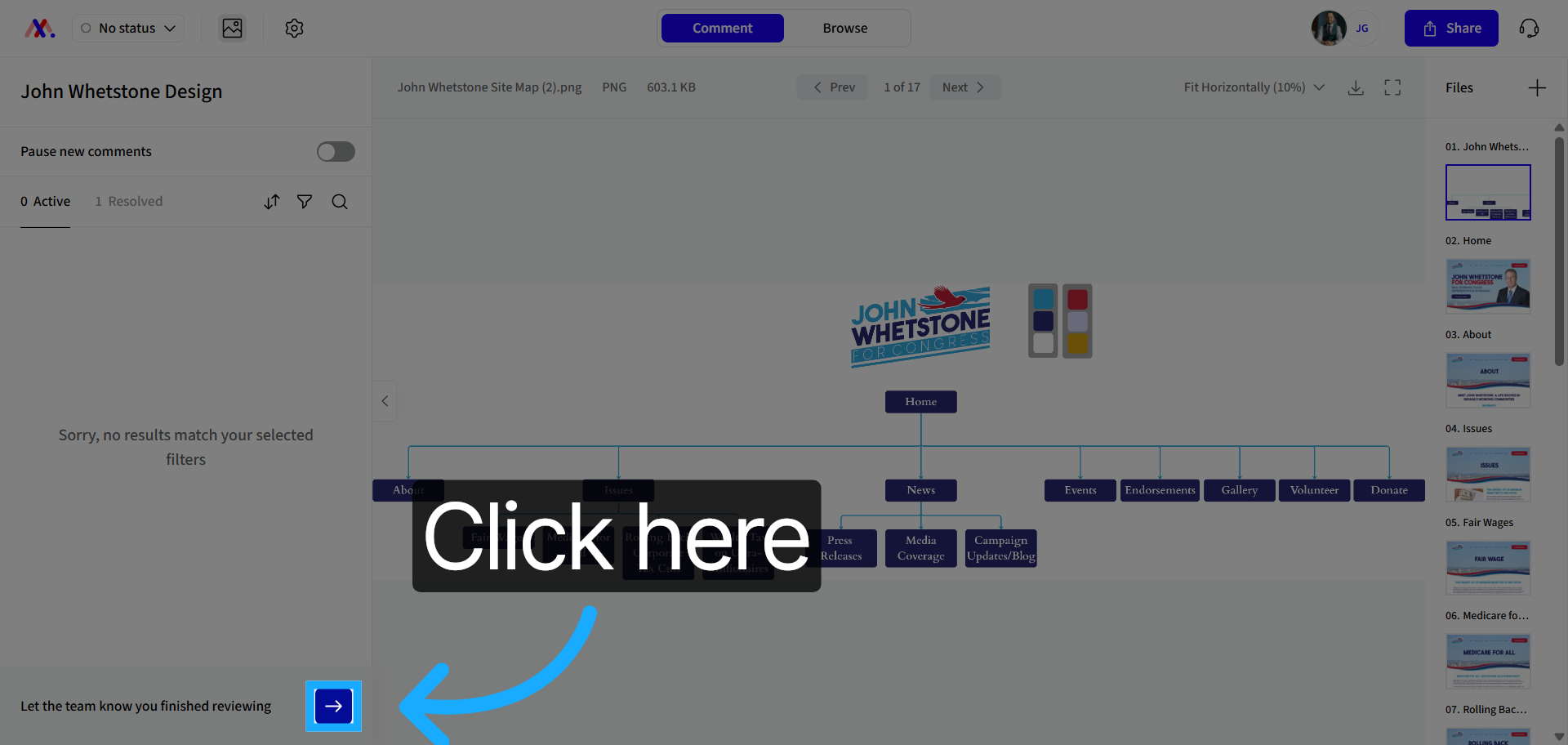
When you're done leaving feedback completely you can hit the blue arrow at the bottom. It says, let the team know you finished review.
You have successfully learned how to leave detailed website and design feedback using markup tools, including adding comments, drawings, attachments, and video recordings. After completing your review, notify the team to begin implementing your suggested changes.